Please note, the TV must be on and the mini PC connected to the TV must not be asleep. Please press a button on the wireless mouse or tap the keyboard so you can see the Windows desktop
If the screen displays a message "weak or no signal " this means the mini PC is off - Please press the power button the bottom right edge of the mini PC on the wall (under the TV)
The TV must be on input HDMI 1
How to use AirPlay / wirelessly send your Macbook to the Prep meeting room screen
- Make sure your Mac and Apple TV are on the same network.
- Click the AirPlay status icon in the menu bar, then choose your Apple TV.
Note: If you don’t see the AirPlay status icon in the menu bar, check that your Apple TV is set up correctly. - To set whether your desktop matches the size of the Mac screen or the TV screen, click the AirPlay status icon, then choose This Mac or your Apple TV. When you’re using AirPlay Mirroring, the AirPlay status icon in the menu bar is blue.
Wirelessly streaming your phone's display is also an option if needed
How to Cast / wirelessly send your Windows or Chromebook to the Prep meeting room screen
1 Cast Screen using Chrome Browser
- Open Google Chrome.
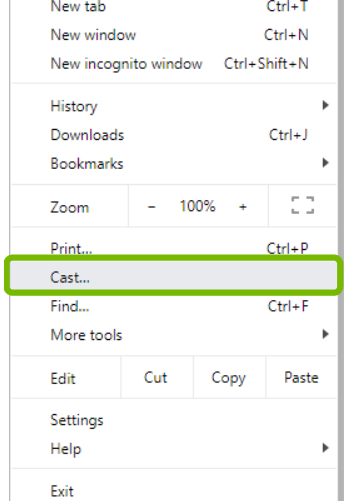
- Select Menu in the top-right corner, then select Cast.
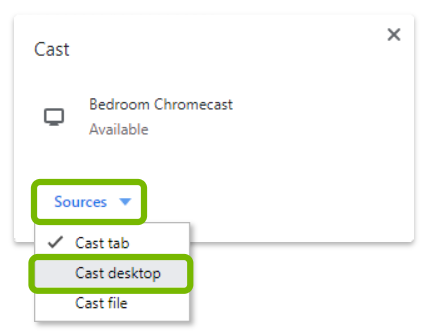
- From the Cast box, select Sources then Cast Desktop.
- Select your Chromecast from the list.
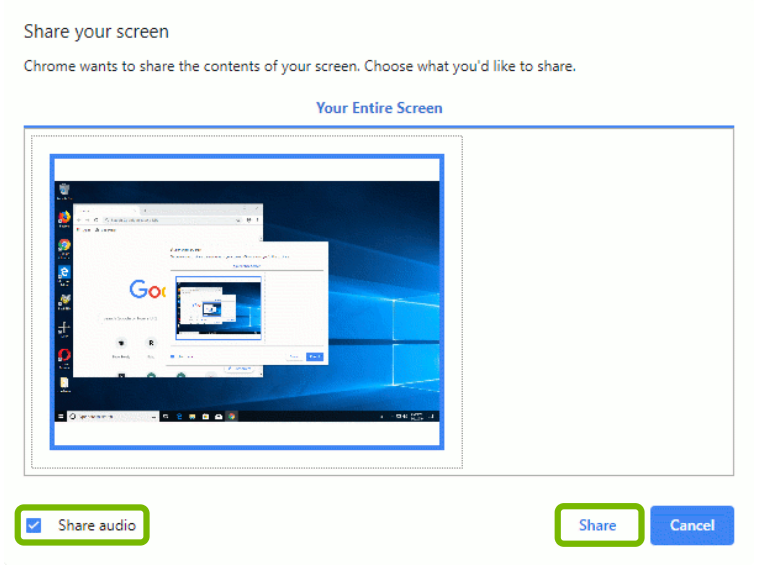
- You'll be asked what you'd like to share. Your Entire Screen is selected by default. Make sure Share audio is checked, then select Share.
- A blue Casting icon will appear on your Chrome toolbar to indicate you are casting.
Don't close the Chrome window you're using, it will stop casting. You can minimize Chrome if the window is in your way.
To Stop Casting
- Select the Cast icon on top of Chrome.
- Select your Chromecast to stop casting.
Wirelessly streaming your phone's display is also an option if needed
Zoom or Google Meet on the meeting room screen
Wirelessly presenting your own device to host the Zoom or Google Meet is not advised. There is a PC and webcam connected to the screen already. The wireless mouse and Keyboard should also be in the room and wirelessly connected.
There will be an icon for Zoom on the desktop where you can enter the meeting ID and password, however, the easiest way to do this is to email the zoom link to and access that email. Currently, prepmeetingroom@claremontschool.co.uk is signed in.
For a Google Meet, you will just access through the browser.