Taking a Register
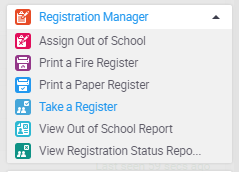
- Expand the Registration category on the right hand side of the screen and click on Take a Register. A new window will open
- Select the Registration Date, Time and Form/Set using the drop down menus
- When the selections above are complete click Go. A list of students for the selected form is displayed
- Mark students as present or away/absent:
The register automatically saves after a short period of time. You can click Force Save to manually save any changes. - If a student has been marked as absent, click on the drop down list to select the reason for their absence
- Click the + icon next to a student to add a note. For example, if the student has brought in a note from parents or an appointment card, make a note of it here.
- Click on Close Window when you have completed the changes.
Video
Video provided by mileschool