Exam papers printing with grid lines

Printing

Exam papers printing with grid lines support guide illustration.

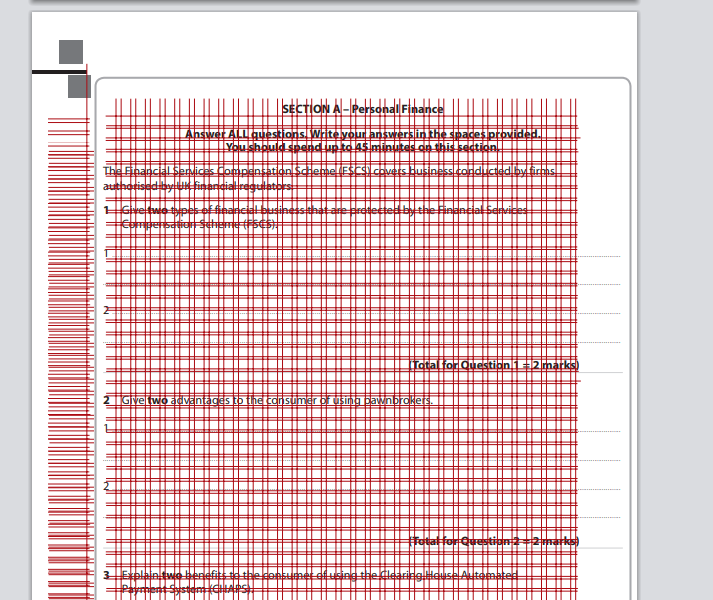
Removing the grid lines from an exam paper

  1. Make sure you have adobe reader installed on your computer.
  2. Open the PDF in adobe reader
  3. Go to View > Show/Hide > Ruler and Grids then untick Line weights (or press CTRL + 5)

Removing the grid lines from an exam paper (the longer alternative way)

  1. Make sure you have adobe reader installed on your computer.
  2. Open the PDF in adobe reader
  3. Go to File > Save as - (CTRL + SHIFT + S )
  4. Locate to where you would like to save to (I recommend a new folder)
  5. Change the file type to JPEG and click save
  6. Navigate to a website to convert JPEG's into a PDF. I used https://smallpdf.com/jpg-to-pdf
  7. Drag/choose your files to upload and upload them (If they appear in reverse order you will need to print in reverse)
  8. Wait (could be ages depending on how many images you have) for them all to show their previews and then click 'convert' in the top right
  9. Once that has converted I would recommend compressing the file size if it is quite large by simply clicking the 'compress pdf' option and then selecting 'basic compression'
  10. Download PDF once completed
  11. Open the new PDF with Adobe reader
  12. Click print (if the PDF is back to front then click 'reverse pages' )
Exam paper print settings.