Writing a Report
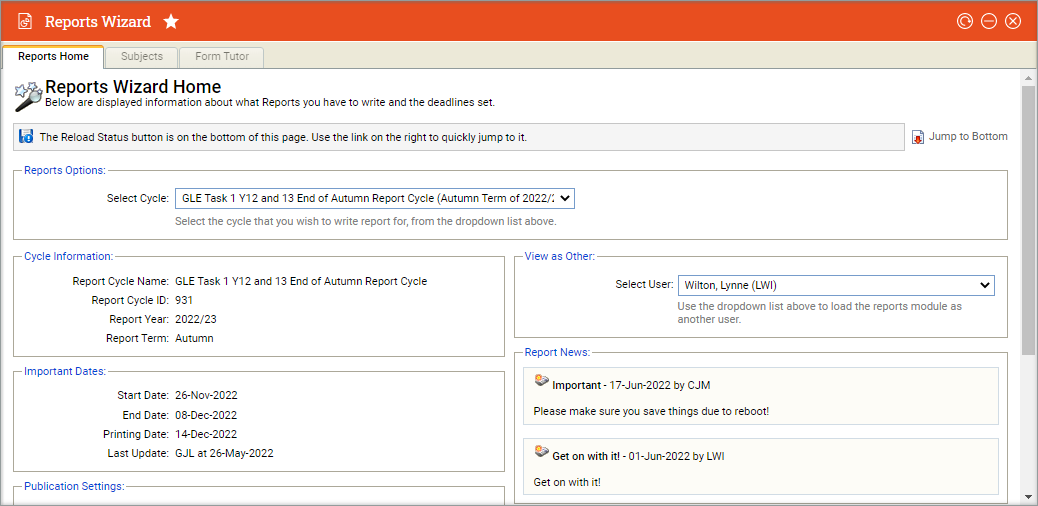
- Open the Reports Wizard module
- Use the drop down list to select the report cycle
- Select the User whose reports you want to access. This defaults to display your own username. Report type tabs are displayed at the top of the screen.
- Select a report type tab to work with. Each tab uses the same format for writing reports
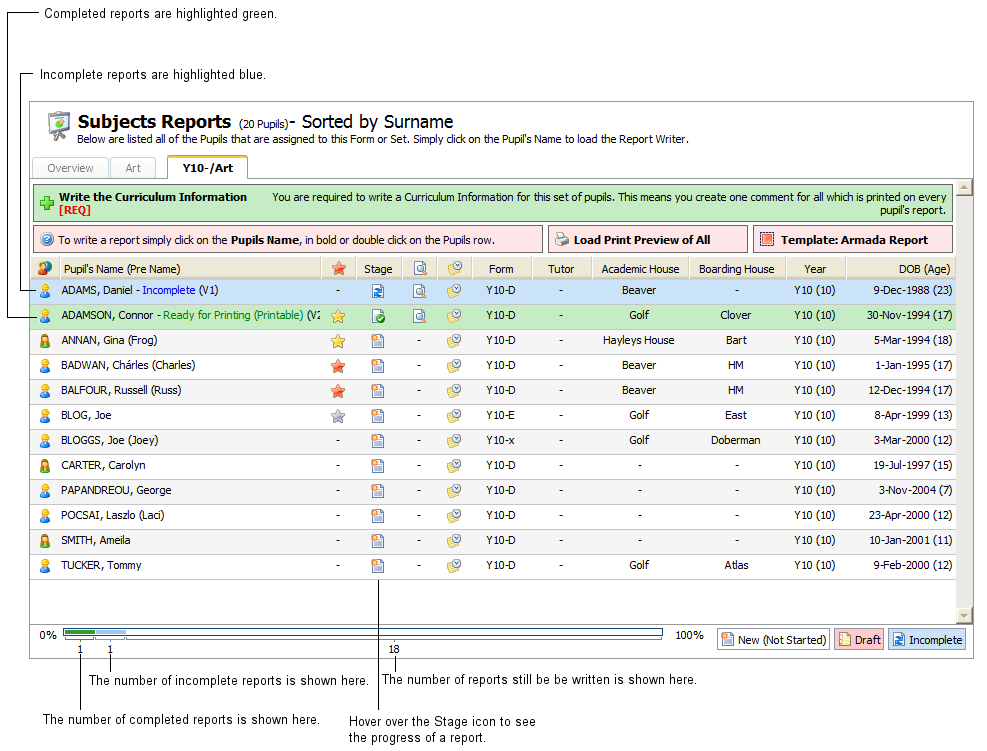
All the subjects that the teacher is responsible for are listed here. The progress bar shows how many reports there are to be completed for that subject. As reports are completed the bar will turn green - Select a subject/group to work with. Either:
Click in the subject/group name in the Overview tab.
or
Click on a sub tab in the Subjects Reports screen.
If you are working with subjects, the Sets and Forms screen is displayed - Click on a set/form to display the Reports screen. All of the students in the selected set/form are listed
- Click on a selected student's name to view the Report Writer
- Expand the Current Grades section and select Grading Options for the student.
- Expand the Current Results section and enter Results Options for the student. This refers to assessment or exam results.
- Expand the Current Positions section and select a Position for the student. This refers to the ranking position of a student in their form or set.
- Expand the Current Comments section and write your comment
- Select the status for the report (Draft, Incomplete or Complete). Your selection may influence proof reader access to your reports.
- Either Click Save & Close
or
Click Save & Next to open the Report Writer window for the next student listed in the Reports screen.
The saved report is shown in the Reports screen. The status of the report and the progress stage is indicated for you