Emailing Students
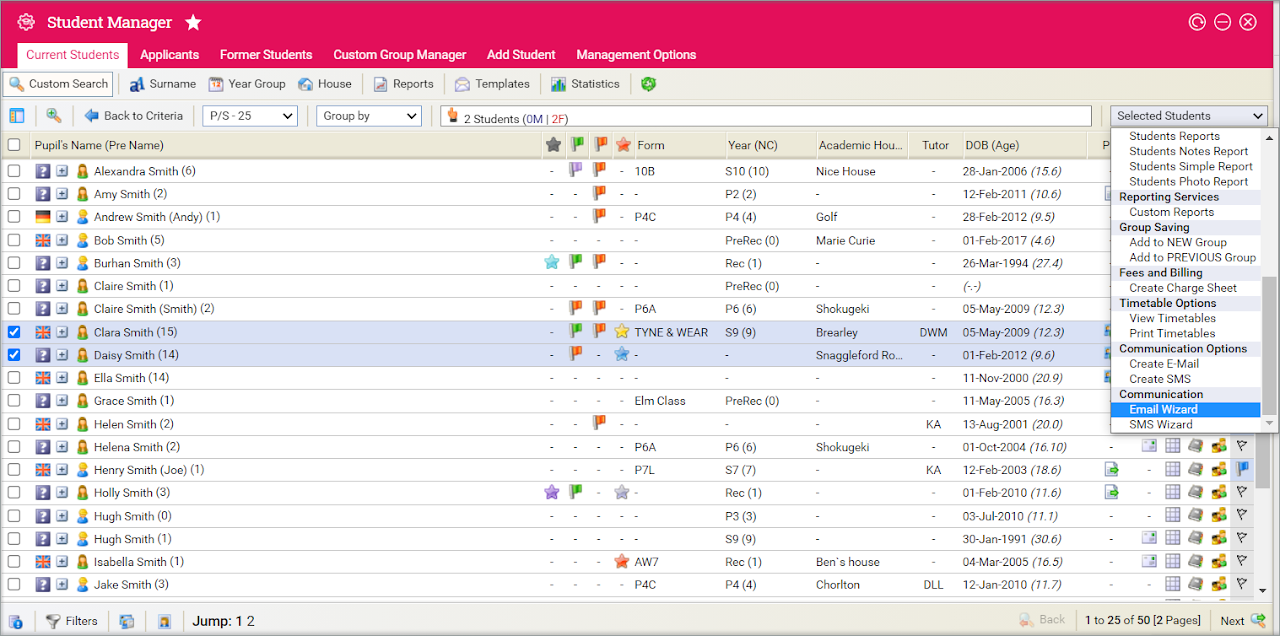
- Open the Student Manager module.
- Use your preferred search method to find the student records you want to work with
- Select the checkboxes by the students you wish to contact:
- Select Email Wizard from the pink drop down list.
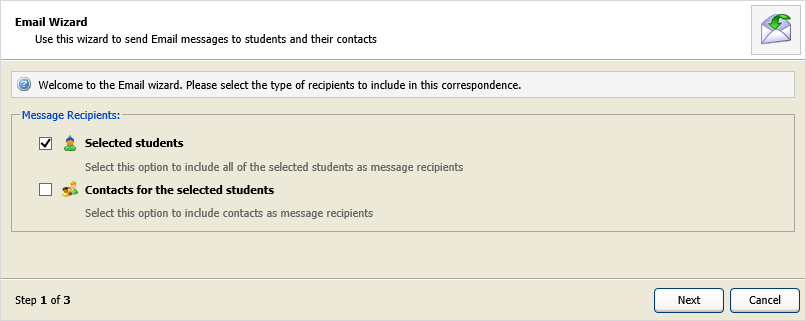
- Check Selected students:
- Click Next.
- Click OK to confirm your selection.
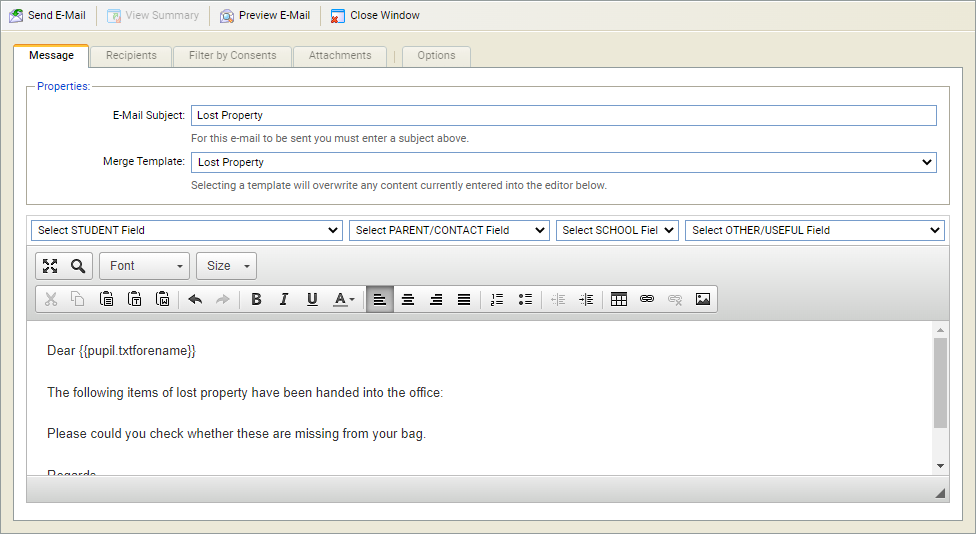
- Use the fields in the Message tab to compose your e-mail:
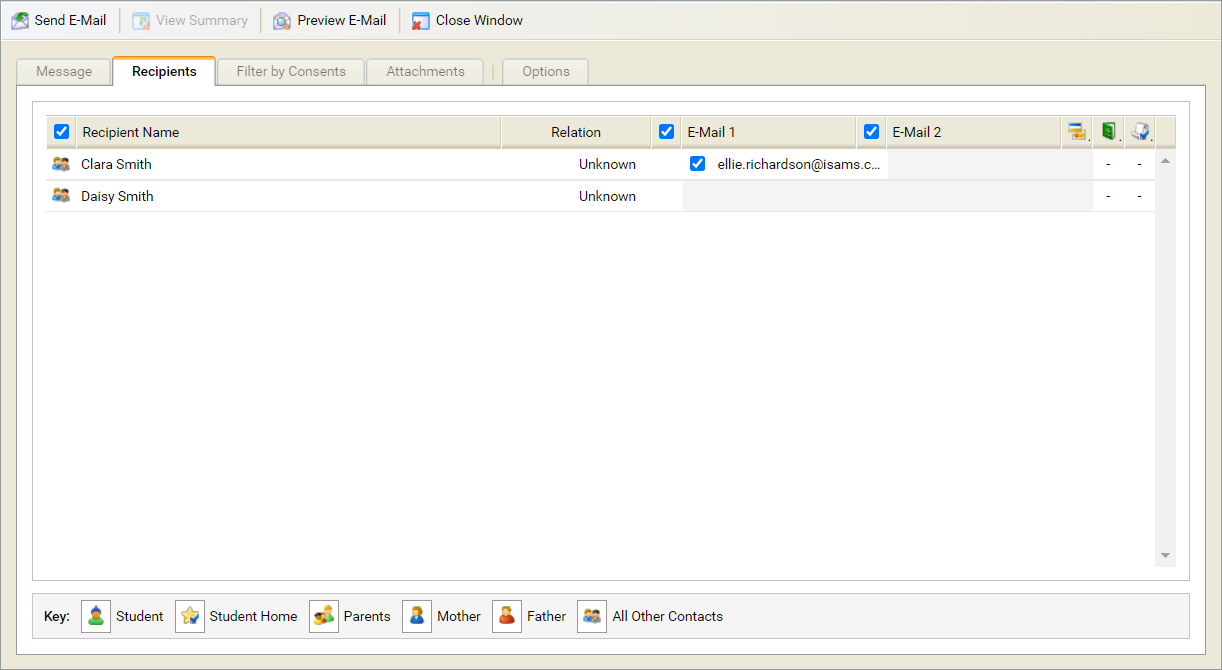
- Select the Recipients tab and confirm the recipients of the e-mail
- Select the Attachments tab and upload attachments, as required.
- Use the Options tab to set e-mail properties:
- Click Send E-Mail when you are ready.
- Click View Summary to check on the status of the e-mail delivery.